Functional Testing Plan of the TIMCAN -Project
Hanna Alatalo
Jarkko Kuivanen
Elisa Nauha
Jere Ojala
Kimmo Urtamo
Version 0.1.6
Public
9.5.2019
University of Jyväskylä
Faculty of Information Technology
Info
Title of the document: Functional Testing Plan of the TIMCAN -Project
File:
https://tim.jyu.fi/view/kurssit/tie/proj/2019/timcan/dokumentit/testaus/toiminnallisuustestaus
Abstract: The functional testing plan of the TIMCAN -project describes what functionalities are to be tested, how testing is executed and how the testing shall be reported.
Keywords: Test plan, functional testing, TIM, testing, The Centre for Applied Language Studies, adaptive feedback, dynamic feedback, virtual learning environment, plugin
Change History
| Version | Date | Changes | Author |
|---|---|---|---|
| 0.0.1 | 11.3.2019 | Created template. | Jere Ojala |
| 0.0.2 | 21.3.2019 | Translated into english. | Jere Ojala |
| 0.0.3 | 25.3.2019 | Translated into english. | Jere Ojala |
| 0.0.4 | 1.4.2019 | Fixed reference footnote links. | Jere Ojala |
| 0.0.5 | 4.4.2019 | Added test cases. | Jere Ojala |
| 0.0.6 | 5.4.2019 | Added test cases for building test and answering the built test. | Elisa Nauha |
| 0.0.7 | 5.4.2019 | Added test case for report exporting and fix typos. | Jere Ojala |
| 0.0.8 | 9.4.2019 | Added test cases for task editing errors and cleaned up prior cases. | Elisa Nauha |
| 0.0.9 | 10.4.2019 | Added test cases for building tasks with errors. | Elisa Nauha |
| 0.0.10 | 11.4.2019 | Added test cases for exporting. | Jere Ojala |
| 0.0.11 | 11.4.2019 | Added test cases for tasks with errors and put in drag&drop task. | Elisa Nauha |
| 0.0.12 | 12.4.2019 | Added test cases for exporting. | Jere Ojala |
| 0.0.13 | 15.4.2019 | Added test cases for exporting. | Jere Ojala |
| 0.0.14 | 16.4.2019 | Added objections, execution and test run. | Jere Ojala |
| 0.0.15 | 17.4.2019 | Edited task templates. | Elisa Nauha |
| 0.0.16 | 18.4.2019 | Correcting typos and other errors. | Jere Ojala |
| 0.0.17 | 23.4.2019 | Added test cases for new features. | Jere Ojala |
| 0.0.18 | 23.4.2019 | Edited task templates to match current. | Elisa Nauha |
| 0.1.0 | 24.4.2019 | Made preliminary fixes. | Jere Ojala |
| 0.1.1 | 25.4.2019 | Templates for similar test cases. | Jere Ojala |
| 0.1.2 | 29.4.2019 | Made minor tweaks. | Jere Ojala |
| 0.1.3 | 6.5.2019 | Cannibalized obsolete test plan. | Jere Ojala |
| 0.1.4 | 6.5.2019 | Replaced images in test cases for building and answering test | Elisa Nauha |
| 0.1.5 | 7.5.2019 | Fixed test cases for errors | Elisa Nauha |
| 0.1.6 | 9.5.2019 | Capitalized headers. | Jere Ojala |
1. Target Application
The functionalities developed by the TIMCAN -project will replace already existing software called ICAnDoiT. ICAnDoiT is an application used by The Centre for Applied Language Studies for the purpose of studying adaptive feedback. Adaptive feedback is feedback that becomes gradually more detailed with every wrong response. The project the team developed into virtual learning environment called TIM, dropdown menu plugin, a drag-and-drop plugin, an adaptive feedback plugin and functionality for exporting the test results in CSV file.
2. Target Features
Chapter describes the features developed in TIMCAN project that to be tested and the features which are excluded from testing.
2.1 Target Features
Target features are
- building a test,
- answering a test,
- report exporting of test,
- building task with errors,
- dropdown,
- radio selection and
- drag-and-drop.
2.2 Features Left Outside of the Testing
Features left outside of testing are
- test reporting from specified periods.
- test reporting validity filtering.
3. Objectives of the Test Session and Methods of Execution
In this chapter objectives and execution of the test session is described.
3.1 Objectives
In functional testing the most essential features are being tested with different inputs. Objective of this is to ensure that system always functions in use the same way without errors.
3.2 Execution
Functional testing shall be executed as a black-box testing manually.
4. Test Run
Only the person who is executing the test shall participate in a test run. Tester should possess basic understanding of operating the Windows Operating System. Tester should also possess basic understanding of operating TIM-system.
4.1 Testing Environment
For testing purpose a tester must have access to computer with WWW browser and internet connection.
Following informations must be to the testing session report:
- software and version,
- operating system and version,
- browser and version,
- working computer/device and version, and
- testing environment's testserver.
4.2 Testing Report
In testing report should include from test session its identification and summary.
For identification of testing session following informations are recorded:
- the name of the test plan and version,
- test session participants,
- test execution date and
- test session testing data.
Summary should include:
- number of executed test cases,
- number of test cases not executed,
- number of every different conclusion separately specified,
- exceptions from the test plan and their justifications and
- recommended procedures after the test session.
Report of the test cases is compiled on table form.
Conclusion must be one of the following:
- OK is the result when test case has succeeded with end result matches with the expected result.
- Error is the result when end result differs from the expected result or something generally harmful is noticed during the test run.
- Note is the result when tester has noticed abnormality in functionality.
In the case of Error and Note it should be reported with regarding details, such as procedures, input, abnormalities and possible error messages that led to the result.
4.2.1 Example of Test Session Report Table
| Case ID | Task and input | Conclusion | Details |
|---|---|---|---|
| 2.2 | Correct streak | Note | OK-button doesn't work, only the link works. |
4.3 Test Cases
Numbering of the test cases are in form of [Case ID].[Subcase ID].
| Task | Case ID |
|---|---|
| Teacher building a test | 1 |
| Student answering a test | 2 |
| Report exporting of test | 3 |
| Building task with errors | 4 |
| Using dropdown | 5 |
| Using radio selection | 6 |
| Using drag-and-drop | 7 |
5. Test Cases for Building a Test
5.1 Building a Test - Instruction Page
Test case: 1.1
Initial state: User is signed in to TIM development machine
Steps:
- Create a new folder in your documents called
TestausTesti1 - In
managemode setDefault rights for new documentsin the folder toviewforlogged-in users. - In the folder create a document called
TestInstructions - Click
Add Paragraphand copy the instructions markup (seeTest data) and clickSave.
Test data:
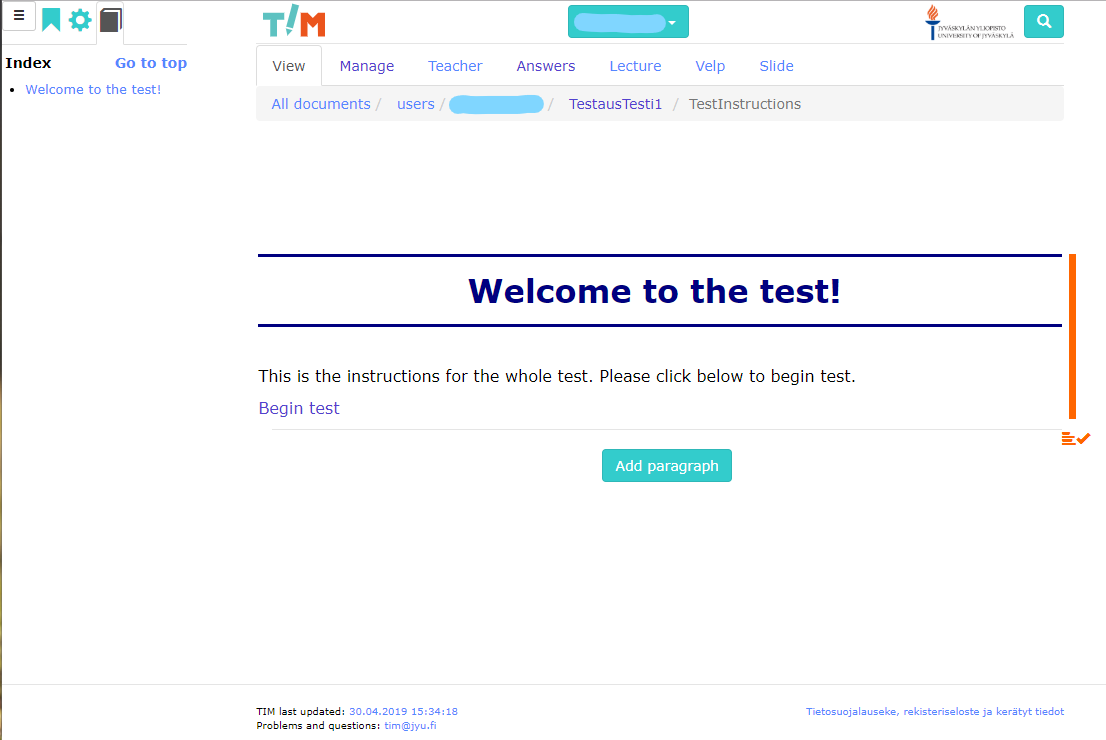
# Welcome to the test!

This is the instructions for the whole test. Please click below to begin test.

[Begin test](test1task1)
Expected result:
5.2 Building a Test - Task 1
Test case: 1.2
Initial state: User is signed in to TIM development machine and has done test case 1.1.
Steps:
- Go to folder
TestausTesti1in your documents - In the folder create a document called
test1task1 - Go to the
managemode and copy the task markup fromappendix 1into theedit the full documentbox and clicksave. - Go to the
viewmode. - In the
viewmode left click on the left side of the feedback paragraph and edit the paragraph. - Find the line "
nextTask:" and write in ""[Task 2](test1task2)"".
Test data: see Appendix 1[1]
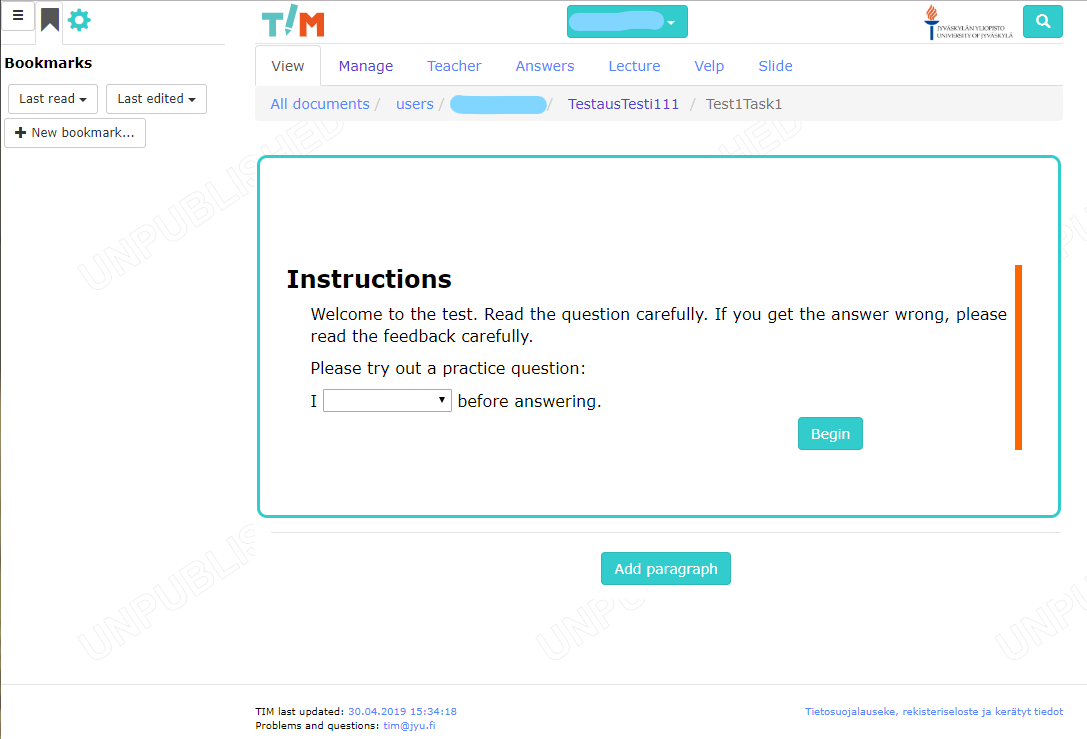
Expected result: Task is ready and looks like so:
5.3 Building a Test - Task 2
Test case: 1.3
Initial state: User is signed in to TIM development machine and has excecuted test case 1.2.
Steps:
- Go to folder
TestausTesti1in your documents - In the folder create a document called
Test1Task2 - Go to the
managemode and copy the task markup fromappendix 2into theedit the full documentbox and clicksave. - Go to the
viewmode. - In the
viewmode left click on the left side of the feedback paragraph and edit the paragraph. - Find the line "
nextTask:" and write in ""[End of test](endoftest)"".
Test data: see Appendix 2[2]
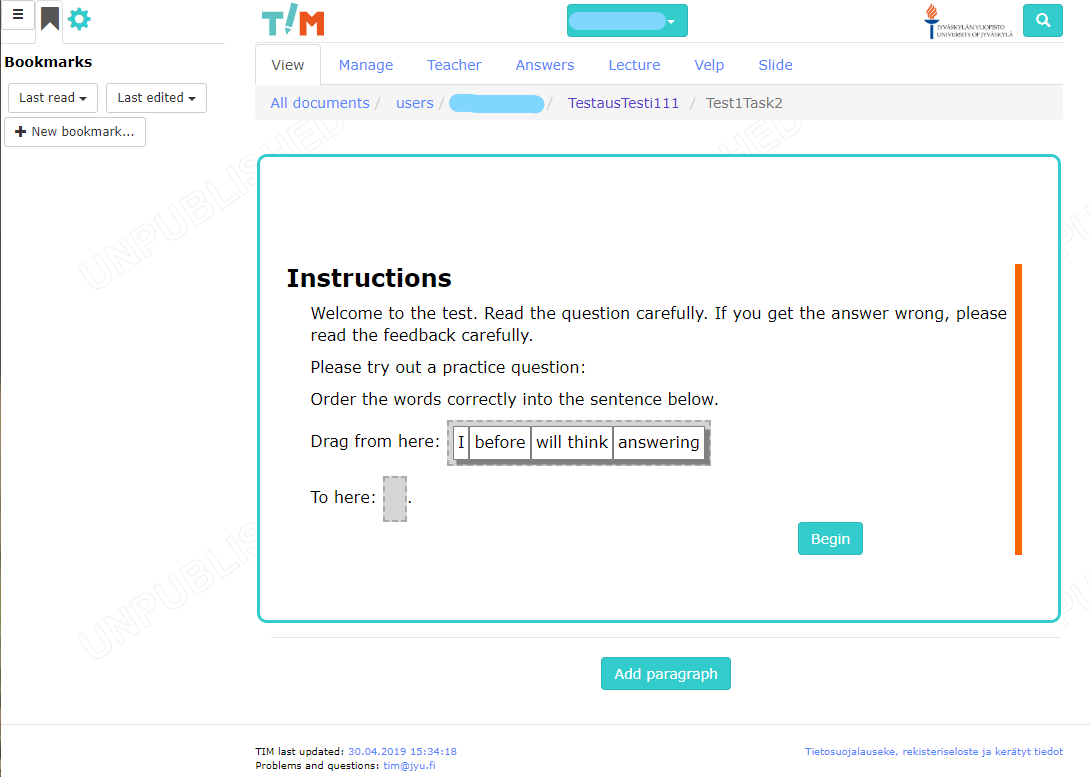
Expected result: Task is ready and looks like so:
5.4 Building a Test - End Page of Test
Test case: 1.4
Initial State: Test cases 1.1-1.3 have been completed successfully
Steps:
- Go to the folder
- Create new document called
EndOfTest - Add a paragraph with the test data.
- Go to
viewmode.
Test Data:
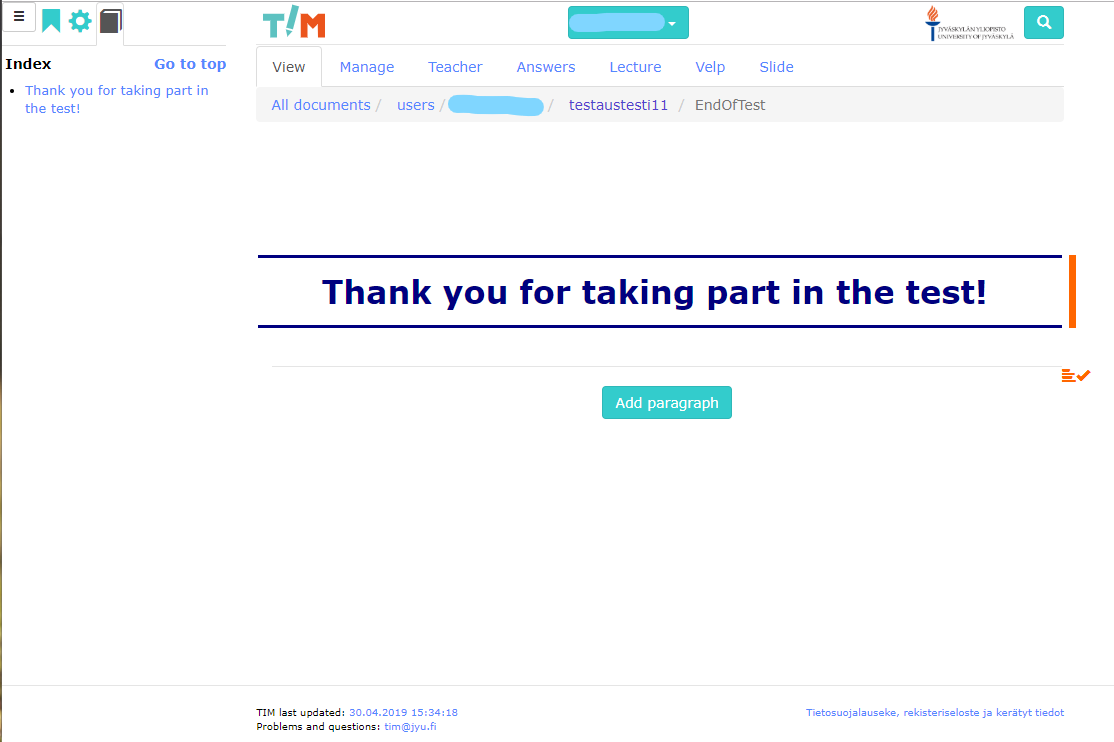
# Thank you for taking part in the test!
Expected Result:
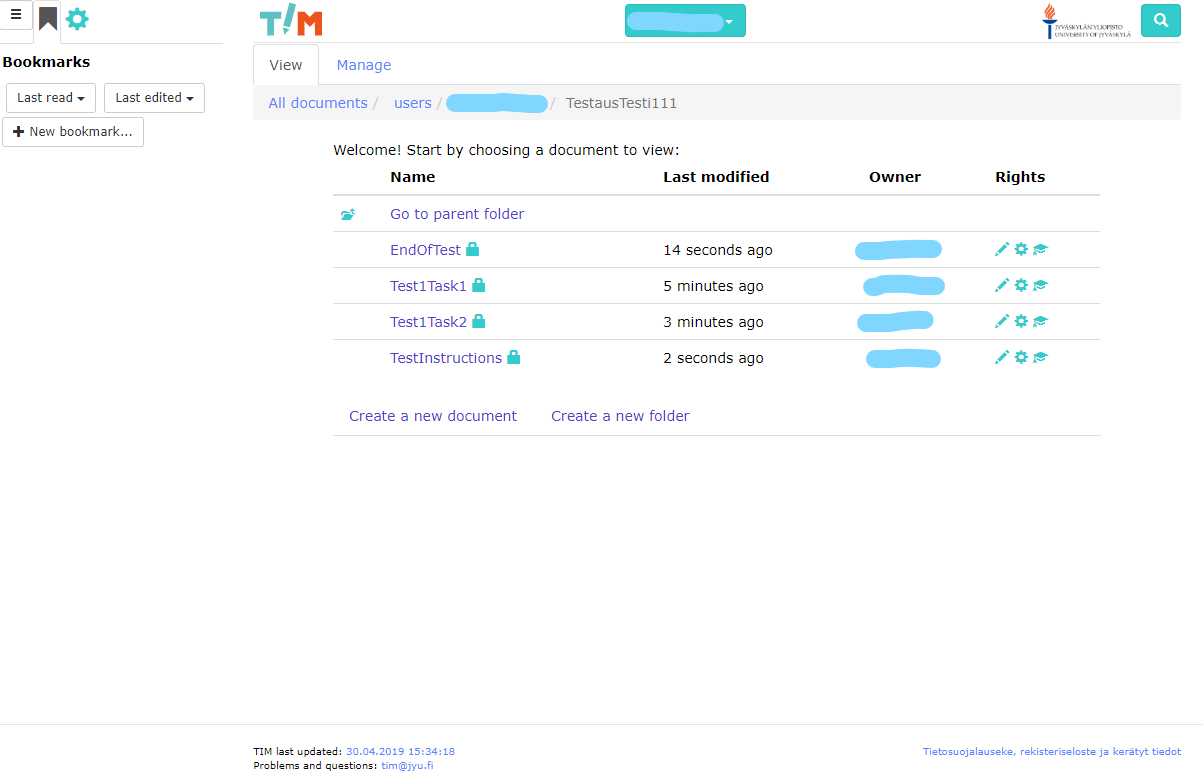
In view mode the page should look like below:
The test folder should look like below:
6. Test cases for Student Answering the Test
6.1 Beginning a Test as Student
Test case: 2.1
Initial State: The test has been successfully built in the test cases 1.1-1.4.
Steps:
- Sign in to TIM as test user (username:
test1@example.comand password:test1). - Go to page of test
https://timdevs01-2.it.jyu.fi/view/users/*username*/testaustesti1/testinstructions
Test Data:
Expected Result: Instruction page for test is visible.
6.2 Answering the Task until Stopping Condition for Correct Streak
Test case: 2.2
Initial State: The previous test cases have been successfully completed.
Steps:
| Step | Expected result: |
|---|---|
1. Click Begin test |
First task page with instructions should appear |
2. Answer practice item and click OK |
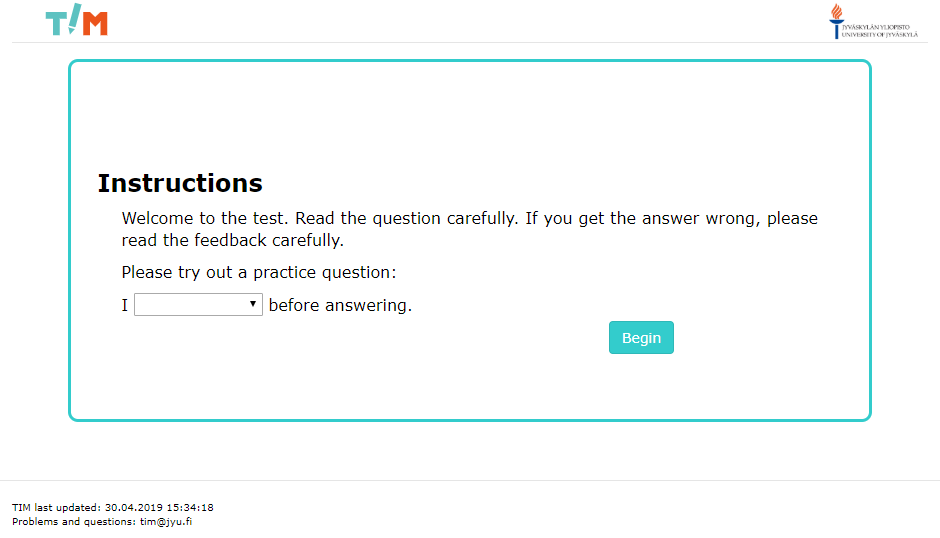
First item should appear |
3. Answer first item do ... and click OK |
Level 1 feedback should appear |
4. click OK on feedback |
Next item should appear |
5. Answer item are ... and click OK |
Level 2 feedback should appear |
6. click OK on feedback |
Next item should appear |
7. Answer item is ... and click OK |
Correct answer feedback should appear |
8. click OK on feedback |
Next item should appear |
9. Answer item is ... and click OK |
Correct answer feedback should appear |
10. Click OK on feedback. |
End of task should appear with a hyperlink |
Test Data: None
Expected Result: See image below and individual steps for expected results.
6.3 Answering the Task Until Stopping Condition for Final Feedback Level Reached
Test case: 2.3
Initial State: The previous test cases have been successfully completed.
Steps:
| Step | Expected result: |
|---|---|
| 1. Click the link to next task. | Task 2 should appear |
2. Answer practice item and click OK. |
First item should appear |
3. Answer first item wrong and click OK. |
Level 1 feedback should appear |
4. Click OK on feedback. |
Next item should appear |
5. Answer item wrong and click OK. |
Level 2 feedback should appear |
6. Click OK on feedback. |
Next item should appear |
7. Answer item wrong and click OK. |
Level 3 feedback should appear |
8. Click OK on feedback. |
Next item should appear |
9. Answer item wrong and click OK. |
Level 4 feedback should appear |
10. Click OK on feedback. |
Next item should appear |
11. Answer item wrong and click OK. |
Level 5 feedback should appear |
12. Click OK on feedback. |
End of task should appear with a hyperlink |
| 13. Click the link. | End of test page should appear |
Test Data: Example wrong answers for questions in task 2:
if run I a mile,who at work I see,had whether I a computer, andwhen come I around.
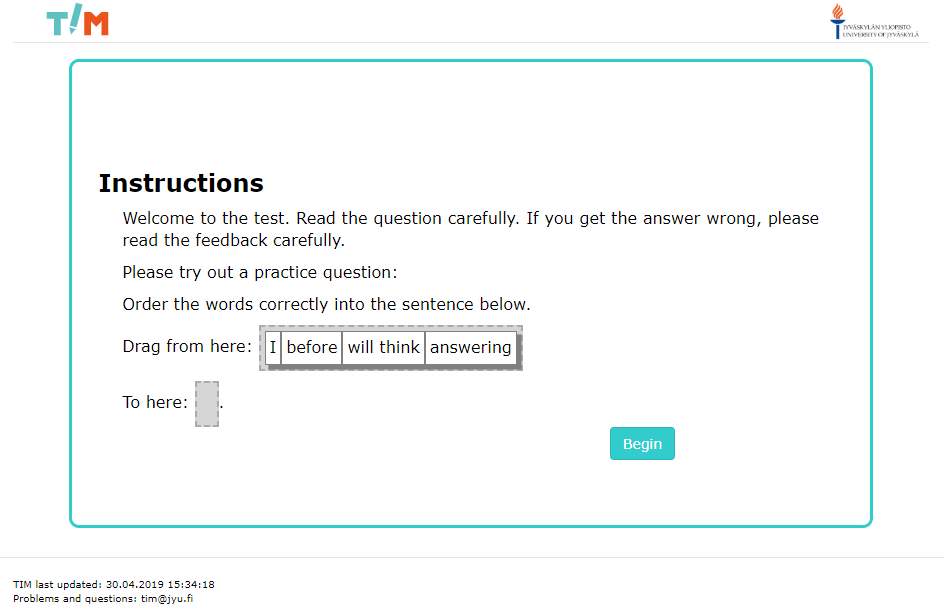
Expected Result: See image below and individual steps for expected results.
6.4 Answering the Test and Not Choosing Options
Test case: 2.4
Initial State: Previous test cases have been successfully completed.
Steps:
- Sign in as another test user (username:
test2@example.comand password:test2). - Go to page of test
https://timdevs01-2.it.jyu.fi/view/users/*username*/testaustesti1/testinstructions - Click
Begin test
| Step | Expected result: |
|---|---|
4. Do not choose answer for practice item and click OK |
A note asking to choose an answer should appear |
5. Choose an answer for the practice item and click OK |
First item should appear |
6. Do not choose answer for item and click OK |
A note asking to choose an answer should appear |
7. Answer item is ... and click OK |
Correct answer feedback should appear |
8. click OK on feedback |
Next item should appear |
9. Answer item is ... and click OK |
Correct answer feedback should appear |
10. click OK on feedback |
End of task should appear |
| 11. Click link to next task | Next task should appear |
12. Do not choose answer for practice item and click OK |
A note asking to choose an answer should appear |
13. Answer practice item and click OK |
First item should appear |
14. Do not choose an answer and click OK |
A note asking to choose an answer should appear |
15. Answer item right (see test data) and click OK |
Correct answer feedback should appear |
16. click OK on feedback |
Next item should appear |
17. Answer item right (see test data) and click OK |
Correct answer feedback should appear |
18. click OK on feedback |
End of task should appear with a hyperlink |
| 19. Click the link | End of test should appear |
Test Data: Example right answers for questions in task 2:
if I run a mile,who I see at work,whether I had a computer, andwhen I come around.
Expected Result: See individual steps for expected results.
7. Report Exporting Test Cases
7.1 Template for Test Cases 3.1-3.7
Test cases 3.1-3.7 all follow this template but with individual test data and final expected results.
Test cases: 3.1-3.7
Initial State: 1.1-2.4 test cases have been successfully completed.
Steps:
| Step | Expected result: |
|---|---|
| 1. Sign in as user who created the test. | |
2. Go to page of test https://timdevs01-2.it.jyu.fi/answers/users /*username*/testaustesti1/test1task1. |
|
3. Expand 2 users with answers-dialog if it is substracted. |
|
4. Open a dropdown menu located in the upper-right corner of the 2 users with answers-dialog. |
Feedback answer report -button option should be in the dropdown menu. |
5. Click Feedback answer report -button |
Export to csv -window should appear. |
6. Select corresponding options from Export Options (see Test Data) |
Radiobuttons are selected accordingly with only one selected per option. |
7. Click Get Answers button |
New tab will appear with test data as .txt format. Final result after each individual test case. |
7.1.1 Exporting Test Results with Default Options
Test case: 3.1
Initial State: See Template for test cases 3.1-3.7
Steps: See Template for test cases 3.1-3.7
Test Data:
Export Options:
Period: Whenever
Validity: Valid
Names: Username and fullname
Scope: Only this task
Answers From: All users
Delimiter: Semicolon
Decimal: Decimal point
Expected Result:
TXT should only include answers from test1task1 document. Names should be displayed both username and full name. Headers should include both username and full name. Delimiters should be separated with semicolon. Time should be displayed with decimal point.
7.1.2 Exporting Results of the Whole Test and with Only Username
Test case: 3.2
Initial State: See Template for test cases 3.1-3.7
Steps: See Template for test cases 3.1-3.7
Test Data:
Export Options:
Period: Whenever
Validity: Valid
Names: Username only
Scope: The whole test
Answers From: All users
Delimiter: Semicolon
Decimal: Decimal point
Expected Result:
TXT should include answers from the whole test folder. Full name should be not displayed neither the respectful header.
7.1.3 Exporting Results of the Whole Test and with Anonymous Username
Test case: 3.3
Initial State: See Template for test cases 3.1-3.7
Steps: See Template for test cases 3.1-3.7
Test Data:
Export Options:
Period: Whenever
Validity: Valid
Names: Anonymous username
Scope: The whole test
Answers from: All users
Delimiter: Semicolon
Decimal: Decimal point
Expected Result:
TXT should include answers from The whole test folder. At the header username should be displayed users anonymously, as in user1 and user2.
7.1.4 Exporting Test Results with Tab-Delimiters
Test case: 3.4
Initial State: See Template for test cases 3.1-3.7
Steps: See Template for test cases 3.1-3.7
Test Data:
Export Options:
Period: Whenever
Validity: Valid
Names: Anonymous username
Scope: The whole test
Answers From: All users
Delimiter: Tab
Decimal: Decimal point
Expected Result:
TXT should include answers from the whole test folder. Delimiters should be tabulators. Only anonymous username is displayed.
7.1.5 Exporting Test Results with Vertical Bar-Delimiters
Test case: 3.5
Initial State: See Template for test cases 3.1-3.7
Steps: See Template for test cases 3.1-3.7
Test Data:
Export Options:
Period: Whenever
Validity: Valid
Names: Anonymous username
Scope: The whole test
Answers From: All users
Delimiter: Vertical bar
Decimal: Decimal point
Expected Result:
TXT should include answers from the whole test folder. Delimiters should be vertical bars. Only username is displayed in headers.
7.1.6 Exporting Test Results with Comma-Delimiters
Test case: 3.6
Initial State: See Template for test cases 3.1-3.7
Steps: See Template for test cases 3.1-3.7
Test Data:
Export Options:
Period: Whenever
Validity: Valid
Names: Anonymous username
Scope: The whole test
Answers From: All users
Delimiter: Comma
Decimal: Decimal point
Expected Result:
TXT should include answers from the whole test folder. Delimiters should be commas. Only username is displayed.
7.1.7 Exporting Test Results with Decimal Comma
Test case: 3.7
Initial State: See Template for test cases 3.1-3.7
Steps: See Template for test cases 3.1-3.7
Test Data:
Export Options:
Period: Whenever
Validity: Valid
Names: Anonymous username
Scope: The whole test
Answers From: All users
Delimiter: Comma
Decimal: Decimal comma
Expected Result:
TXT should include answers from the whole test folder. Time should be displayed with decimal commas with quotation marks. Only username is displayed.
7.2 Template for Test Cases 3.8-3.12
Test cases 3.8-3.12 all follow this template but with individual test data and final expected results.
Test cases: 3.8-3.12
Initial State: 1.1-2.4 test cases have been successfully completed.
Steps:
- Sign in as user who created the test.
- Go to page of test
https://timdevs01-2.it.jyu.fi/answers/users/*username*/testaustesti1/test1task1. - Expand
2 users with answers-dialog if it is substracted.
| Step | Expected result: |
|---|---|
| 4. Test data | Varies by test case. |
5. Open a dropdown menu located in the upper-right corner of the 2 users with answers-dialog. |
Feedback answer report -button option should be in the dropdown menu. |
6. Click Feedback answer report -button |
Export to csv -window should appear. |
| 7. Select corresponding options from "Export Options" (see Test Data) | Radiobuttons are selected accordingly with only one selected per option. |
8. Click Get Answers button |
New tab will appear with test data as .txt format. Final expected result by test case. |
7.2.1 Exporting Test Results with Only One Visible User
Test case: 3.8
Initial State: See Template for test cases 3.8-3.12
Steps: See Template for test cases 3.8-3.12
Test Data:
Step 4: Enter Full Name-text field and input user 1.
Export Options:
Period: Whenever
Validity: Valid
Names: Anonymous username
Scope: The whole test
Answers From: Only visible users
Delimiter: Comma
Decimal: Decimal comma
Expected Result:
Step 4: User list should only display Test user 1.
Final Result: TXT should include answers from the whole test folder. TXT should only include answers from Test user 1.
7.2.2 Exporting Test Results with Two Visible Users
Test case: 3.9
Initial State: See Template for test cases 3.8-3.12
Steps: See Template for test cases 3.8-3.12
Test Data:
Step 4: Enter Full Name-text field and input test
Export Options:
Period: Whenever
Validity: Valid
Names: Anonymous username
Scope: The whole test
Answers From: Only visible users
Delimiter: Comma
Decimal: Decimal comma
Expected Result:
Step 4: User list should both display Test user 1 and Test user 2
Final result:
TXT should include answers from The whole test folder. TXT should include answers from both Test user 1 and Test user 2.
7.2.3 Exporting Test Results with Only Visible Users when Visible User List is Empty
Test case: 3.10
Initial State: See Template for test cases 3.8-3.12
Steps: See Template for test cases 3.8-3.12
Test Data:
Step 4: Enter Full Name-text field and input k
Export Options:
Period: Whenever
Validity: Valid
Names: Anonymous username
Scope: The whole test
Answers From: Only visible users
Delimiter: Comma
Decimal: Decimal comma
Expected Result:
Step 4: User list should be empty.
Final result:
TXT should only include row of headers and no user data. Full Name header should not be included.
7.2.4 Exporting Test Results with Only Selected User
Test case: 3.11
Initial State: See Template for test cases 3.8-3.12
Steps: See Template for test cases 3.8-3.12
Test Data:
Step 4: Select Test user 2 from User list.
Export Options:
Period: Whenever
Validity: Valid
Names: Anonymous username
Scope: The whole test
Answers From: Only selected user
Delimiter: Comma
Decimal: Decimal comma
Expected Result:
Step 4: User list should have Test user 2 highlighted.
Final Result:
TXT should include answers from the whole test folder. TXT should only include answers from Test user 2.
7.2.5 Exporting Test Results with Only Selected User when Visible User List is Empty
Test case: 3.12
Initial State: See Template for test cases 3.8-3.12
Steps: See Template for test cases 3.8-3.12
Test Data:
Step 4.1: Select Test user 2 from User list.
Step 4.2: Enter Full Name -text field and type foobar.
Export Options:
Period: Whenever
Validity: Valid
Names: Anonymous username
Scope: The whole test
Answers From: Only selected user
Delimiter: Comma
Decimal: Decimal comma
Expected Result:
Step 4.1: User list should have Test user 2 highlighted.
Step 4.2: User list should be empty.
Final Result:
TXT should only include row of headers and no user data. Full Name header should not be included.
7.3 Canceling Exporting
Test case: 3.13
Initial State: 1.1-2.4 test cases have been successfully completed.
Steps:
| Step | Expected result: |
|---|---|
| 1. Sign in as user who created the test. | |
2. Go to page of test https://timdevs01-2.it.jyu.fi/answers/ users/*username*/testaustesti1/test1task1. |
|
3. Expand 2 users with answers-dialog if it is substracted. |
|
4. Open a dropdown menu located in the upper-right corner of the 2 users with answers-dialog. |
Feedback answer report -button option should be in the dropdown menu. |
5. Click Feedback answer report -button |
Export to csv -window should appear. |
6. Click Cancel button |
Dialog window should close with no further operations. |
Expected Result: See individual steps for expected results.
8. Building Task with Errors
8.1 Building Task with Varying Number of Feedback Levels
Test case: 4.1
Initial State: A folder called TestausTesti1 has been created.
Steps:
- Go to folder
TestausTesti1in your documents - In the folder create a document called
Test1Task3 - Go to the
managemode and copy the task markup fromappendix 1into theedit the full documentbox and clicksave. - Go to
viewmode and click to edit the feedback paragraph. - Delete a feedback level from one match option such as:
- "Level 2 feedback: You answered: *|answer|* Answer is wrong. Try thinking *a bit* harder. " - Click
save. Expected result: Gives red warning: "Different number of feedback levels" - Go to
viewmode and click to edit the feedback paragraph. - Paste the deleted feedback level back in the right place.
- Click
save. Expected result: Error disappears.
Test Data: None
Expected Result: In step 6 an error should appear and be recovered from in step 9.
8.2 Building Task with No Link to Next Task/End of Test
Test case: 4.2
Initial State: An errorless task Test1Task3 has been created (test case 4.1)
Steps:
- Click to edit the feedback paragraph of document
Test1Task3. - Delete the input of
nextTask: - Click
save. Expected result: Gives red warning:The following fields have invalid values: nextTask: Field may not be null. - Click to edit the feedback paragraph.
- Reinput "link" into the
nextTask:-field. - Click
save. Expected result: Error should disappear.
Test Data: None
Expected Result: In step 3 and error should be displayed and it should be recovered from in step 6.
8.3 Building Task with No Instruction Block Defined
Test case: 4.3
Initial State: An errorless task Test1Task3 has been created (test case 4.1)
Steps:
- Click to edit the instructions paragraph of document
Test1Task3. - Delete the instruction paragraph ID
.instructionand clicksave. - Click to edit the feedback paragraph and click
save. Expected result: Gives red warning:Instruction not defined - Click to edit the instructions paragraph.
- Reinput the instruction plugin and click
save. - Click to edit the feedback paragraph and click
save. Expected result: Error should disappear.
Test Data: None
Expected Result: In step 3 and error should be displayed and it should be recovered from in step 6.
8.4 Building Task with No Right Answer Defined
Test case: 4.4
Initial State: An errorless task Test1Task3 has been created (test case 4.1)
Steps:
- Click to edit the feedback paragraph of document
Test1Task3. - Delete the lines:
    - match: [is baking]
      correct: true
levels: *ismatch- Click
save. Expected result: Gives red warning:No correct answer defined for question item.. - Click to edit the feedback paragraph.
- Reinput the deleted text.
- Click
save. Expected result: Error should disappear.
Test Data: None
Expected Result: In step 3 and error should be displayed and it should be recovered from in step 6.
8.5 Building Task with Wrong Names for Plugins
Test case: 4.5
Initial State: An errorless task Test1Task3 has been created (test case 4.1)
Steps:
- Click to edit the feedback paragraph of document
Test1Task3. - Change the pluginname
drop1on line 7 tonodrop1 - Click
save. Expected result: Gives red warning:No plugin with such a name (nodrop1) or missing setPluginWords-method - Click to edit the feedback paragraph.
- Change the pluginname
nodrop1on line 7 back todrop1 - Click
save. Expected result: Error should disappear.
Test Data: None
Expected Result: In step 3 and error should be displayed and it should be recovered from in step 6.
8.6 Building Task with No Default Feedback
Test case: 4.6
Initial State: An errorless task Test1Task3 has been created (test case 4.1)
Steps:
- Click to edit the feedback paragraph of document
Test1Task3. - Delete lines:
    - match: []
levels: *defaultmatch- Click
save. Expected result: Gives red warning:Default feedback option needed - Click to edit the feedback paragraph.
- Reinput the deleted text.
- Click
save. Expected result: Error should disappear.
Test Data: None
Expected Result: In step 3 and error should be displayed and it should be recovered from in step 6.
8.7 Building Task with No Feedback
Test case: 4.7
Initial State: An errorless task Test1Task3 has been created (test case 4.1)
Steps:
- Click to edit the feedback paragraph of document
Test1Task3. - Delete lines:
  choices:
    - match: [is baking]
      correct: true
      levels: *ismatch
    - match: [do baking]
      levels: *domatch
    - match: [are baking]
      levels: *arematch
    - match: []
levels: *defaultmatch- Click
save. Expected result: Gives red warning:Feedback choices needed - Click to edit the feedback paragraph.
- Reinput the deleted text.
- Click
save. Expected result: Error should disappear.
Test Data: None
Expected Result: In step 3 and error should be displayed and it should be recovered from in step 6.
Appendices
Appendix 1: Template for Dropdown Task Markup
``` {settings=""}
hide_links: view
hide_top_buttons: view

css: |!!
.paragraphs {
display: none;
}
!!
```

#- {area="dropdowntask1" .task}

## Instructions {.instruction defaultplugin="dropdown"}

Welcome to the test. Read the question carefully. If you get the answer wrong, please read the feedback carefully.


Please try out a practice question:


I {#practice words: [will think, won't think, might think]} before answering.


## Item: {defaultplugin="dropdown"}

What {#dropdown1} on the stove?


## Item: {defaultplugin="dropdown"}

Who {#dropdown2} the cake?


## Item: {defaultplugin="dropdown"}

What {#dropdown3} on the roof?


## Item: {defaultplugin="dropdown"}

Who {#dropdown4} the 3 mile swim in the race?


``` {#fb1 plugin="feedback"}
correctStreak: 2
nextTask: nonexttaskdefined
questionItems:
- pluginNames: [dropdown1]
  words: [[is cooking, do cooking, are cooking]]
  choices:
    - match: [is cooking]
      correct: true
      levels: &ismatch
        - "**Correct!** You answered: |answer|"
    - match: [do cooking]
      levels: &domatch
        - "Level 1 feedback: You answered: *|answer|* Answer is wrong. Try **thinking**. "
        - "Level 2 feedback: You answered: *|answer|* Answer is wrong. Try thinking *a bit* harder. "
        - "Level 3 feedback: You answered: *|answer|* Answer is wrong. Try thinking **much more** harder. "
        - "Level 4 feedback: You answered: *|answer|* Answer is wrong. Just think about what the answer **is**. "
        - "Level 5 feedback: Please note the correct answer: 'What **is** / Who **is**'"
    - match: [are cooking]
      levels: &arematch
        - "Level 1 feedback: You answered: *|answer|* Answer is wrong. Try **thinking**. "
        - "Level 2 feedback: You answered: *|answer|* Answer is wrong. Try thinking *a bit* harder. "
        - "Level 3 feedback: You answered: *|answer|* Answer is wrong. Try thinking **much more** harder. "
        - "Level 4 feedback: You answered: *|answer|* Answer is wrong. Just think about what the answer **is**. "
        - "Level 5 feedback: Please note the correct answer: 'What **is** / Who **is**'"
    - match: []
      levels: &defaultmatch
        - "Level 1 feedback: default feedback for drop4"
        - "Level 2 feedback: default feedback for drop4"
        - "Level 3 feedback: default feedback for drop4"
        - "Level 4 feedback: default feedback for drop4"
        - "Level 5 feedback: Please note the correct answer: 'What **is** / Who **is**'"
- pluginNames: [dropdown2]
  words: [[is baking, do baking, are baking]]
  choices:
    - match: [is baking]
      correct: true
      levels: *ismatch
    - match: [do baking]
      levels: *domatch
    - match: [are baking]
      levels: *arematch
    - match: []
      levels: *defaultmatch
- pluginNames: [dropdown3]
  words: [[is jumping, do jumping, are jumping]]
  choices:
    - match: [is jumping]
      correct: true
      levels: *ismatch
    - match: [do jumping]
      levels: *domatch
    - match: [are jumping]
      levels: *arematch
    - match: []
      levels: *defaultmatch
- pluginNames: [dropdown4]
  words: [[is swimming, do swimming, are swimming]]
  choices:
    - match: [is swimming]
      correct: true
      levels: *ismatch
    - match: [do swimming]
      levels: *domatch
    - match: [are swimming]
      levels: *arematch
    - match: []
      levels: *defaultmatch
```
#- {area_end="dropdowntask1"}
Appendix 2: Template for Drag & Drop Task Markup
``` {settings=""}
hide_links: view
hide_top_buttons: view

css: |!!
.paragraphs {
display: none;
}
!!
```

#- {area="dragtask1" .task}

## Instructions {.instruction defaultplugin="drag"}

Welcome to the test. Read the question carefully. If you get the answer wrong, please read the feedback carefully.


Please try out a practice question:

Order the words correctly into the sentence below.

Drag from here: {#practice1 words: [I, before, will think, answering]}


To here: {#practice2}.


## Item {defaultplugin="drag"}
::: {.info}
Please order the words correctly into the sentence below.


{#drag1 words: [I, when, around, come]}

:::
You know where I'll be found {#drop1}.


## Item {defaultplugin="drag"}
::: {.info}
Please order the words correctly into the sentence below.


{#drag2 words: [I, if, a mile, run]}

:::
I will be quite tired {#drop2}.


## Item {defaultplugin="drag"}
::: {.info}
Please order the words correctly into the sentence below.


{#drag3 words: [I, who, at work, see]}

:::
I will tell you {#drop3}.


## Item {defaultplugin="drag"}
::: {.info}
Please order the words correctly into the sentence below.


{#drag4 words: [I, whether, a computer, had]}

:::
He wanted to know {#drop4}.


``` {#fb1 plugin="feedback"}

correctStreak: 2
nextTask: nonexttaskdefined
questionItems:
- pluginNames: [drop1]
  dragSource: drag1
  words: []
  choices:
    - match: [when I come around]
      correct: true
      levels: &rightmatch
        - "**Correct!** You answered: |answer|"
    - match: [when around I come]
      levels: &asvmatch
        - "Level 1 feedback: You answered: *|answer|* Answer is wrong. Try **thinking**. "
        - "Level 2 feedback: You answered: *|answer|* Answer is wrong. Try thinking *a bit* harder. "
        - "Level 3 feedback: You answered: *|answer|* Answer is wrong. Try thinking **much more** harder. "
        - "Level 4 feedback: You answered: *|answer|* Answer is wrong. Just think about **what the answer is**. "
        - "Level 5 feedback: Please note the correct word order: 'conjuction subject verb the rest'"
    - match: [when come I around]
      levels: &vsamatch
        - "Level 1 feedback: You answered: *|answer|* Answer is wrong. Try **thinking**. "
        - "Level 2 feedback: You answered: *|answer|* Answer is wrong. Try thinking *a bit* harder. "
        - "Level 3 feedback: You answered: *|answer|* Answer is wrong. Try thinking **much more** harder. "
        - "Level 4 feedback: You answered: *|answer|* Answer is wrong. Just think about **what the answer is** "
        - "Level 5 feedback: Please note the correct word order: 'conjuction subject verb the rest'"
    - match: []
      levels: &defaultmatch
        - "Level 1 feedback: You answered: *|answer|* Answer is wrong. Try **thinking**."
        - "Level 2 feedback: You answered: *|answer|* Answer is wrong. Think about what comes first."
        - "Level 3 feedback: You answered: *|answer|* Answer is wrong. Think about what word comes first."
        - "Level 4 feedback: You answered: *|answer|* Answer is wrong. The conjunction should come first."
        - "Level 5 feedback: Please note the correct word order: 'conjuction subject verb the rest'"
- pluginNames: [drop2]
  dragSource: drag2
  words: []
  choices:
    - match: [if I run a mile]
      correct: true
      levels: *rightmatch
    - match: [if a mile I run]
      levels: *asvmatch
    - match: [if run I a mile]
      levels: *vsamatch
    - match: []
      levels: *defaultmatch
- pluginNames: [drop3]
  dragSource: drag3
  words: []
  choices:
    - match: [who I see at work]
      correct: true
      levels: *rightmatch
    - match: [who at work I see]
      levels: *asvmatch
    - match: [who see I at work]
      levels: *vsamatch
    - match: []
      levels: *defaultmatch
- pluginNames: [drop4]
  dragSource: drag4
  words: []
  choices:
    - match: [whether I had a computer]
      correct: true
      levels: *rightmatch
    - match: [whether a computer I had]
      levels: *asvmatch
    - match: [whether had I a computer]
      levels: *vsamatch
    - match: []
      levels: *defaultmatch

```
#- {area_end="dragtask1"}These are the current permissions for this document; please modify if needed. You can always modify these permissions from the manage page.