Demo 1
Deadline is Monday at 11:59 (noon).
The letter M refers to the section in the lecture notes that concerns the topic.
General
The assignments marked with an asterisk (*) are obligatory. There are two obligatory assignments each week.
The points received from the last time you hit Run/Test button remain. Note that tasks that have a separate Test button usually generate different amount of points from (i) running and (ii) testing.
Example of such case:
Running was successful   ->  0.5p
Tests passed  ->  1p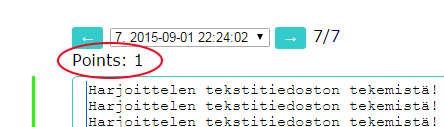
This week's learning objectives
After this week you...
- know how to open the command prompt, navigate between folders, and create new folders.
- know how to use plain text editor.
- can create, compile and run a C# program that outputs text.
- can create a simple graphical C# program.
- understand how text is stored inside a computer.
Also, install the necessary development tools.
Ryhmässä tekeminen
Mikäli teette tehtäviä ryhmässä, niin kirjautukaa kaikki TIMiin, niin saatte palautettua tehtävät kerralla kaikille ryhmäläisille. Ryhmän muiden jäsenten kirjautumisen voi tehdä yläreunassa olevaa omaa nimeä klikkaamalla; sieltä aukeaa valikko, jossa voi lisätä muita käyttäjiä. Lopuksi muistakaa kaikki kirjautua ulos.
Academic integrity
(In Finnish only, sorry.) Lue luku akateeminen rehellisyys ja hyväksy että noudatat tällä kurssilla näitä periaatteita.
Time tracking (0.5 p.)
You get 0.5 points from marking your total working hours. Use the Set Custom Points function.
Write an estimate of how many hours you worked on this course when counting all the time you used this week in attending lectures (or watching them online), reading the learning material, working on the assignments, and so on. The count is taken from Monday morning to Sunday night, so, a full calendar week. You can save your hours and update them later; it maybe easier to keep track of the total time that way.
Security policy in the computer labs
In the Agora computer labs, you can run programs only from C:\MyTemp\Anonymous folder. Create that folder and use it while you are working with the assignments.
Task 1. Hello World
Preparations (Windows users): Open command prompt and give the following command.
Close and reopen the command prompt.
Assignment: Write a console application that outputs the text "Hello World". Compile and run the application in command prompt with writing the following commands.
csc HelloWorld.cs
HelloWorld.exe
(In Mac/Linux the above command is msc HelloWorld.cs, then ./HelloWorld)
Then, copy and paste the source code of your Hello World app below.
Task 2*. Printing your info
Valmistelut: Kopioi aluksi Hello World -tehtävän tiedosto HelloWorld.cs tiedostoksi Mina.cs kirjoittamalla CMD-komentorivillä:
copy HelloWorld.cs Mina.csVastaava komento Mac ja Linux käyttöjärjestelmillä (ja siis myös Git Bash):
cp HelloWorld.cs Mina.csWrite a console application that outputs your name, your mobile phone model, and your mobile service provider. Compile and run the application to make sure that it works correctly. Then, copy and paste the source code of your app below.
Task 3*. Snowman
M: 4. Yksinkertainen graafinen C#-ohjelma
Modify the snowman below: add eyes, a nose and a mouth.
To see the whole class / original source code, click the Näytä koko koodi link.
Anna itsellesi tehtävästä pistemäärä väliltä 0-1 (rasti kohtaan Set custom points). Jos teit tehtävän mielestäsi täysin oikein, 1 piste, puoliksi oikein 0.5 pistettä jne.
Ukon värin ja ulkonäön muuttaminen
Kokeile palloille erilaisia värejä. Esimerkiksi
paa.Color = Color.HotPink;Rivin voit lisätä mihin tahansa sen jälkeen kun muuttuja p2 on esitelty. Kuitenkin ennen aliohjelman lopettavaa aaltosulkua }. Paras paikka on siellä, missä muutenkin käsitellään p2 muuttujaa (siis ennen kuin p3 on esitelty).
Käytössä olevat valmiit värien nimet näet esimerkiksi Jypelin dokumentaatiosta tai ohjeista.
Minkä tahansa värin voit itse tehdä kutsulla tyyliin:
paa.Color = new Color(173, 255, 47, 10);missä parametrit ovat järjestyksessä Red, Green, Blue, Alpha. Kukin arvo voi vaihdella välillä 0-255. Alpha tarkoittaa läpinäkyvyysarvoa, 0 täysin läpinäkyvä, 255 täysin läpinäkymätön.
Voit vaihtaa myös taustan värin sellaiseksi kuin haluat.
Kokeile kirjaston ohjeiden mukaan vaihtaa alin pallo kaksi kertaa leveämmäksi. Älä muuta "pallon" korkeutta.
Piirrä ukolle silmät.
Voimia peliin
Lisää Begin-aliohjelman loppuun rivi (muistathan, että Begin alkaa Begin-rivin jälkeisestä aaltosulusta, ja päättyy vastaavasti aliohjelman sulkevaan aaltosulkuun):
Gravity = new Vector(0, -400);- käännä ja aja
- kokeile muita lukuja -400:n paikalle
Tehtävä 4. Komentorivi
Lue ensin lukukappale komentorivistä. (Tätä ei ole monisteessa.)
Tässä tehtävässä luodaan komentorivin avulla uusi kansiorakenne omalle tietokoneelle. Kansiorakenne toimii esimerkkinä siitä millä tavalla tiedostoja voi järjestellä tällä kurssilla. Saatoit mahdollisesti tehdä osan tästä rakenteesta jo Tehtävän 1 yhteydessä.
Tehtävässä on rinnakkaiset ohjeet kullekin käyttöjärjestelmälle. MacOS- ja Linux-järjestelmissä käytetään Pääte (engl. Terminal) -ohjelmaa. Windowsissa voi valita, käyttääkö komentorivinä Git Bash (suositus; asentuu automaattisesti Git-versiohallinnan mukana), WSL, Komentokehotetta (cmd) vai PowerShell-ohjelmaa.
MacOS:ssa ja Linuxissa alla esitetty kurssit hakemisto kannattaa tehdä oman kotihakemiston alaisuuteen. Näissä järjestelmissä käyttäjän oman kotihakemiston tunnus on ~/, joka lyhenne kotihakemistolle, esim /users/vesal.
Siirtyminen työskentelyhakemistoon. Aloita seuraavalla komennolla sen mukaan mitä komentoriviä käytät. Mikäli käytät Windowsissa jotain muuta kuin C-levyasemaa, sovella ohjetta:
Linux/macOS: cd ~
Git Bash:    cd /c
WSL:         cd /mnt/c
CMD:         cd /d C:\
PowerShell:  cd c:\
Kansiorakenteen luominen. Tee komentorivillä alla olevan mallin mukainen hakemistorakenne. Sisennykset kuvaavat hierarkiaa, eli sitä mikä hakemisto kuuluu minkä sisään. Tässä kurssit-hakemisto sisältää ohj1-hakemiston, joka puolestaan sisältää demot- ja ht-kansiot, ja niin edelleen.
kurssit
  ohj1
    demot
      demo1
      demo2
    ht
Kun olet luonut yllä olevan hakemistorakenteen, palaa siihen työskentelyhakemistoon, josta aloitit ensimmäisessä kohdassa.
Rakenteen tulostaminen näytölle. Kirjoita komento
Linux/Mac/Git Bash/WSL:   ls -laR kurssit
PowerShell:               dir -s kurssit
cmd:                      dir kurssit /s
Tulostuksessa pitäisi näkyä mm. seuraavia rivejä, jos tehtävä on tehty oikein. Joillain komentoriviohjelmilla sekä Linuxilla tulostus saattaa näyttää erilaiselle, mutta idea on sama:
kurssit:
total 0
drwxr-xr-x 1 vesal 197609 0 Sep  4 23:09 .
drwxr-xr-x 1 vesal 197609 0 Sep  4 23:09 ..
drwxr-xr-x 1 vesal 197609 0 Sep  4 23:09 ohj1

kurssit/ohj1:
total 0
drwxr-xr-x 1 vesal 197609 0 Sep  4 23:09 .
drwxr-xr-x 1 vesal 197609 0 Sep  4 23:09 ..
drwxr-xr-x 1 vesal 197609 0 Sep  4 23:09 demot
drwxr-xr-x 1 vesal 197609 0 Sep  4 23:09 ht

kurssit/ohj1/demot:
total 0
drwxr-xr-x 1 vesal 197609 0 Sep  4 23:09 .
drwxr-xr-x 1 vesal 197609 0 Sep  4 23:09 ..
drwxr-xr-x 1 vesal 197609 0 Sep  4 23:09 demo1
drwxr-xr-x 1 vesal 197609 0 Sep  4 23:09 demo2
Palautettavan tiedoston luominen: Tehtävän vastaukseksi luodaan palautettava tiedosto teht4.txt seuraavasti:
Linux/Mac/Git Bash/WSL:   ls -laR kurssit >kurssit/ohj1/demot/demo1/teht4.txt
cmd:                      dir kurssit /s >kurssit\ohj1\demot\demo1\teht4.txt
PowerShell:               dir -s kurssit >kurssit\ohj1\demot\demo1\teht4.txt
Katso, millainen tiedostosta syntyi. Mene ensin demo1 hakemistoon ja sitten:
Linux/Mac/Git Bash/WSL:   cat teht4.txt
CMD/PowerShell:           type teht4.txt
tai voit vaihtoehtoisesti tutkia tiedoston sisältöä myös tekstieditorilla.
Tehtävän palauttaminen: Kopioi tiedoston teht4.txt sisältö alla olevaan tekstikenttään. Sitten voit tuhota tiedoston.
Task 5. Text editor
Install and launch a plain text editor (e.g., Notepad++, Sublime Text, Vim) and create a blank text file. Note that word processors (e.g., Word, LibreOffice) are not plain text editors.
Take time with a stopwatch and see how long it takes to create a text file based on the instructions below. Please read the instructions carefully.
You are NOT ALLOWED to use a mouse during this task. All the features of the text editor that can be accessed with a keyboard are, of course, at your disposal (copy-paste, find and replace, and so on).
Start to take time when you write the first character and stop when the last character has been written. The content of the file has to be exactly as follows:
1.  First write exactly hundred lines which all read:

I’m practicing the creation of a text file!

2.  After that there is exactly 80 minus signs (-) on a one line following
    a line break.
3.  Then forty lines that contain numbers from one to forty expressed
    with two numbers in a way that every line only contains one number.
    This sequence would start like this:

01
02
03

    ...and it would end like this:

39
40

4.  After this there is another line with 80 minus signs on it. No other lines
    or empty lines should exist. White spaces are not allowed at the
    beginning or the end of a line.
Stop the time. Afterwards write your time at the end of the file (as a new last line right after the minus signs) (mm:ss).
After this, on a new line, write what and how you did things during this task. Now, copy everything and paste it in the answer box.
Your time gives you an idea of your efficiency as a typist. If you want you can do this test again at the end of this course and see if you have made any progress.
Give yourself one point with Set custom points tool, if you think you did the assignment fully correctly.
Anna itsellesi pistemäärä väliltä 0-1 (rasti kohtaan Set custom points). Jos teit tehtävän mielestäsi täysin oikein, 1 piste, puoliksi oikein 0.5 pistettä jne.
Tehtävä 6. ASCII-koodi
Ou my! Simo has broken his USB drive. There are only fragments of data left in the drive and no way of knowing what fragment goes with what. There were lots of MP3 files and junk in it… Simo knows that in one important file there was a clear text written with capital letters. The bit sequence bellow seems promising but what text is saved there:
Table 1:
01010100  01010101  01010100  01001011
01001001  01000101  01001100  01001101
01010011
Let’s make this easier: the next table has the same one byte long strings as above, converted into numbers of the base 10 (decimal) numeral system (as seen in table 3 01010100 = 84 and so on) . As an example one of the numbers have been converted into a letter in the table 2 bellow.
Table 2:

binary    dec   char  hex
==========================
01010100 = 84
01010101 = 85 => U     55
01010100 = 84
01001011 = 75

... fill in the rest of the table…
    hexadecimal (hex) values will be filled in later in this task after you
    have completed this part.
Convert the rest of the characters and answer the following questions:
- What text is saved in this part of the USB memory?
- How many millimeters Simo has missed the right key in the case of the incorrect letter if he has the same keyboard as you?
- What binary number should be in place of the incorrect letter?
As an answer to this task fill the table 2 and answer the questions. Simo knows that in the file format he uses symbols are represented by the following codes (piece of an ASCII code):
Table 3:

Decimalnumber Binarynumber Corresponding symbol
-------------------------------------------
  32          00100000      [white space]
  33          00100001        !
  46          00101110        .
  65          01000001        A
  66          01000010        B
  67          01000011        C
  68          01000100        D
  69          01000101        E
  70          01000110        F
  71          01000111        G
  72          01001000        H
  73          01001001        I
  74          01001010        J
  75          01001011        K
  76          01001100        L
  77          01001101        M
  78          01001110        N
  79          01001111        O
  80          01010000        P
  81          01010001        Q
  82          01010010        R
  83          01010011        S
  84          01010100        T
  85          01010101        U
  86          01010110        V
  87          01010111        W
  88          01011000        X
  89          01011001        Y
  90          01011010        Z
When you have interpreted all the symbols install some hex editor using the instructions in the course's homepage. Create a file using a text editor (for example ConText) where the text you just translated is written with letters. Then open this file in the hex editor and check out the hex numbers for each of the symbols. Fill them into the table 2 next to the letters. Usually in computer science hex numbers are used when talking about things represented by binary numbers (like in this exercise we are talking about the codes of letters).
Taulukko 1:
01010100  01010101  01010100  01001011
01001001  01000101  01001100  01001101
01010011
Helpotetaan: seuraavassa on samat (taulukon 1) tavun mittaiset jonot 10-järjestelmän lukuina (saatu luettua taulukosta 3 eli 01010100 = 84 jne...), ja malliksi on yksi luku muutettu ymmärrettäväksi kirjaimeksi alla olevaan taulukko 2:een.
Taulukko 2:

binääri   dec   char
====================
01010100 = 84
01010101 = 85 => U
01010100 = 84
01001011 = 75

... täydennä vastaavuudet loppuun saakka ...
Tulkitse kaikki muutkin merkit, ja vastaa sitten seuraaviin kysymyksiin:
- Mikä teksti tuohon kohtaan USB-tikun muistia on tallentunut?
- Montako millimetriä Simo on painanut ohi yhdestä näppäimestä? Hänellä on samanlainen näppäimistö kuin sinulla.
- Mikä binääriluku pitäisi olla viallisen kirjaimen kohdalla?
Luo tiedosto teht6.txt, jonka alussa on nimesi, sitten täydennetty taulukko 2 kirjainten vastaavuuksista ja vastaukset kysymyksiin.
Kopioi tuon tiedoston sisältö alla olevaan palautuskenttään.
Simo tietää, että hänen käyttämässään tiedostomuodossa merkeille on sovittu seuraavat koodit (pala ASCII-koodia monisteen luvusta M: 27. ASCII-koodi):
Taulukko 3:

Desimaaliluku Binäärilukuna Vastaa merkkiä
-------------------------------------------
  32          00100000      [välilyönti]
  33          00100001        !
  46          00101110        .
  65          01000001        A
  66          01000010        B
  67          01000011        C
  68          01000100        D
  69          01000101        E
  70          01000110        F
  71          01000111        G
  72          01001000        H
  73          01001001        I
  74          01001010        J
  75          01001011        K
  76          01001100        L
  77          01001101        M
  78          01001110        N
  79          01001111        O
  80          01010000        P
  81          01010001        Q
  82          01010010        R
  83          01010011        S
  84          01010100        T
  85          01010101        U
  86          01010110        V
  87          01010111        W
  88          01011000        X
  89          01011001        Y
  90          01011010        Z
Kun olet tulkinnut kaikki merkit, kirjoita selkokielinen teksti (kirjoitusmerkein) tekstieditorissa ja tallenna se tiedostonimellä t6-vainteksti.txt.
Tehtävä Tauno T1 a (0.5p)
Tee Taunolla ohjelma, joka kääntää taulukon päinvastaiseen järjestykseen. Aloittaaksesi klikkaa Näytä Tauno.
Saadaksesi tehtävästä 0.5 pistettä, paina vastauslaatikon alareunasta Aja sekä Test.
Lue ensin Taunon käyttöohjeet.
Tehtävä Tauno T1 b (0.5p)
Tee Taunolla ohjelma, joka vaihtaa joka toisen alkion pareittain keskenään. Eli taulukosta 1, 2, 3, 4 tulee taulukko 2, 1, 4, 3
V1. Ville
Tee Villestä kohta 1.
Tee myös Villestä tehtävä 2.1. Palauta tehtävä kirjoittamalla alla olevaan tekstilaatikkoon mitä opit ja mitä mieltä olit kerran Ville-tehtävistä ja auttoivatko Ville-tehtävät sinua yhtään. Muutama rivi riittää.
Tässä lyhyt ohje Villeen kirjautumiseen:
- Siirry osoitteeseen https://ville.utu.fi?c=wjjvAXbZHKZX
- Anna kurssiavain
ohj1cs - Kirjaudu HAKA-kirjautumisen avulla
B1. Kurssin alkukysely ja kysymys opettajille
(The qurvey is in Finnish only)
Answer the pre-survey. (0.5 p.)
Ask teachers a question (0.5 p). You can also see previous questions and answers (in Finnish only, sorry). We try to answer all your questions.
B2. Scratch (1 p.)
Scratch on varsin suosittu ohjelmointiympäristö erityisesti nuorten ja koululaisten kohdalla. Vaikka Scratchissa ei juuri kirjoiteta itse koodia, ovat käytettävät käsitteet melko samoja kuin C#:ssa.
Mene scratch.mit.edu ja tee klassinen kaksinpelattava juoksupeli (a.k.a. näppäimistön rämpytys). Idea: kaksi pelaajaa on ikkunan vasemmassa reunassa. Toinen pelaaja liikkuu esimerkiksi välilyönnistä, ja toinen vaikkapa jostakin nuolinäppäimestä. Se kumpi saavuttaa maaliviivan ensin on voittaja.
Anna itsellesi pistemäärä väliltä 0-1 (rasti kohtaan Set custom points). Jos teit tehtävän mielestäsi täysin oikein, 1 piste, puoliksi oikein 0.5 pistettä jne.
Scratchiin kirjautuminen mahdollistaa projektin jakamisen (Share) linkkinä. Mikäli et halua kirjautua Scratchiin, niin ota projektistasi (skripteistäsi) kuvaruutukaappaus, tallenna se jollekin verkkosivulle, ja palauta linkki kyseiseen kuvaan. Voit siis valita kumpaa palautusmetodia käytät.
Palautus linkkinä, kun Scratch-projekti on jaettu
Palautus kuvaruutukaappauksena
B3. Numeron siirtäminen
Yhtä numeroa siirtämällä tee yhtälöstä 62 - 63 = 1 tosi.
Anna itsellesi pistemäärä väliltä 0-1 (rasti kohtaan Set custom points). Jos teit tehtävän mielestäsi täysin oikein, 1 piste, puoliksi oikein 0.5 pistettä jne.
G1-2. Luvut joiden neliöjuuri on kokonaisluku
Tee C#-ohjelma, joka tulostaa kaikki ne kokonaisluvut jotka ovat pienempiä (tai yhtäsuuria) kuin 1000 ja joiden neliöjuuri on kokonaisluku. Vinkki: Kirjoita ennen koodaamista käsin lista kokonaislukuja järjestyksessä ja lisäksi näiden lukujen neliöjuuria. Tätä sanotaan testilähtöiseksi kehitykseksi (Test Driven Development, TDD).
These are the current permissions for this document; please modify if needed. You can always modify these permissions from the manage page.